LyondellBasell API
Note: Please ensure you have read the documentation before using this search tool to get the most accurate results.
Introduction
This documentation is designed to help you understand how to use the various resources available within the Azure Developer Portal. Here, you'll find detailed guides, tutorials, and reference materials that will assist you in integrating and utilizing Azure APIs effectively. Whether you're a beginner or an experienced developer, our documentation provides the information you need to get started
Authentication
Each API within the Azure Developer Portal has its own built-in OAuth authentication mechanism. To obtain an access token, you need to follow the specific instructions provided for each API. This ensures secure access to the API and protects your data from unauthorized access. Authentication is generally of two types: OAuth and Basic. To generate the token, click on the respective buttons on the right.
To generate the token, click on the button below and enter the following details of the target API:
{
"client_id": "value",
"grant_type": "value",
"scope": "value",
"client_secret": "value"
}
To generate the token, click on the button below and enter the following details of the target API:
{
"username": "value",
"password": "value"
}
Guided Example
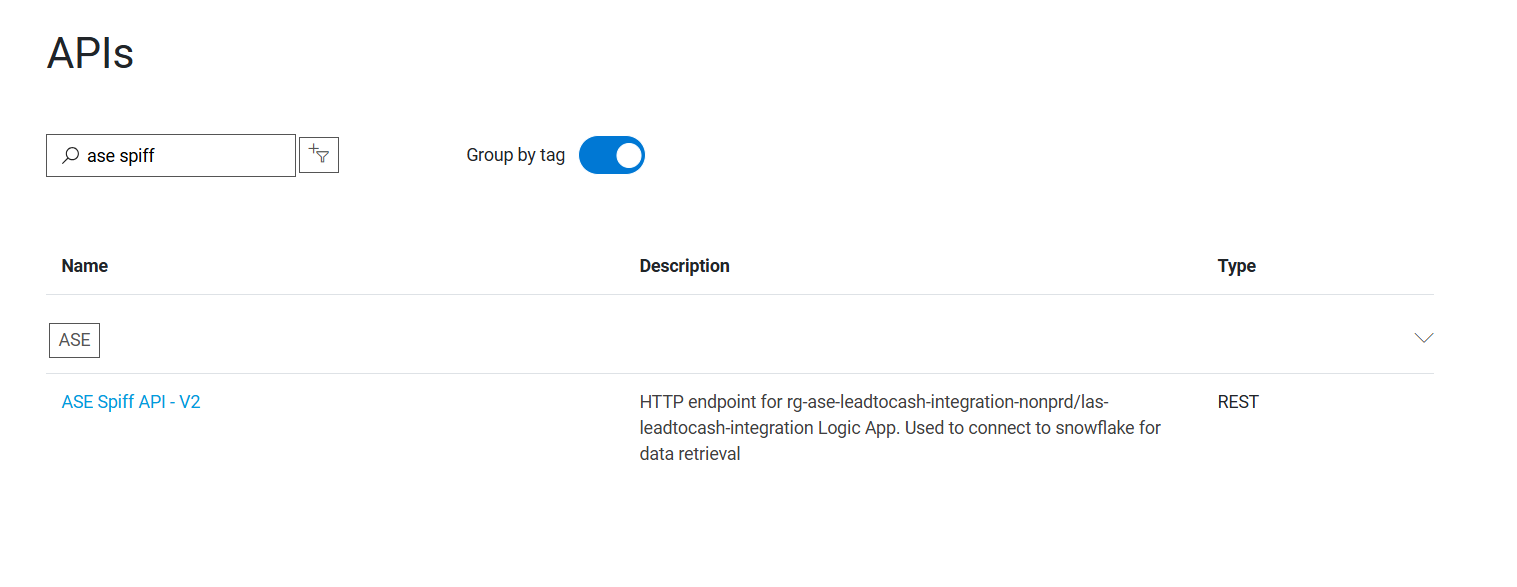
This section demonstrates how to access the Snowflake API using the Developer Portal. The process begins by navigating to the portal's homepage and selecting the "Search for APIs" button. This action opens a new interface where users can explore all available APIs. The portal provides two primary methods for locating an API: by entering its name into the search box or by using tags that categorize APIs based on their functionality or grouping. In this instance, since the name of the API is known, we will proceed by entering "ASE Spiff API" into the search box to locate it directly.
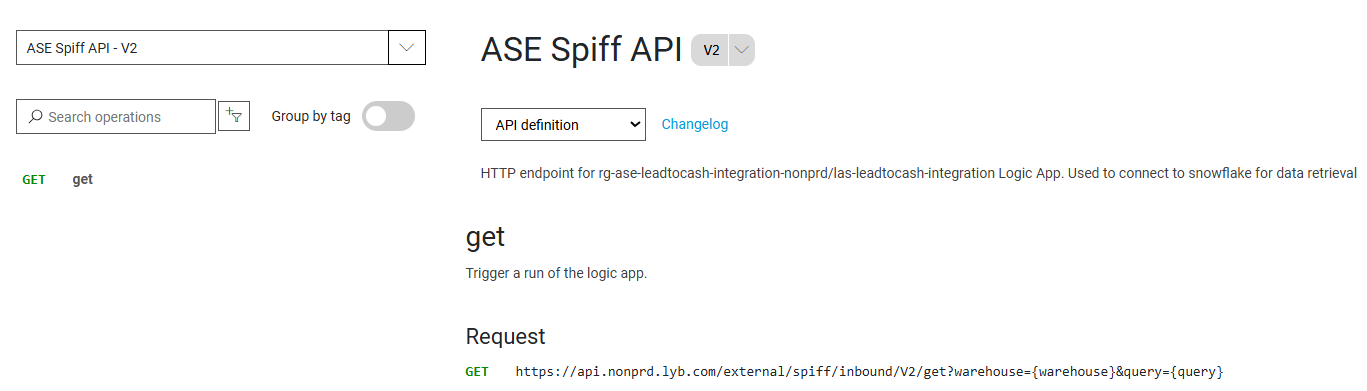
Once the desired API has been located and selected, the user is redirected to the API details page. This page provides comprehensive information about the API, including the various HTTP methods it supports, such as GET, POST, PUT, and DELETE. Each method is accompanied by detailed specifications, including the required request body, headers, and mandatory fields. For the purpose of this example, we will focus on the GET method. To successfully invoke this method for the Snowflake Spiff API, three key components are required: an authentication bearer token, a query, and the warehouse request query parameter. To obtain the bearer token, refer to the Authentication section of the documentation, which outlines the OAuth process for generating a valid token. Now we can move on to testing the API.
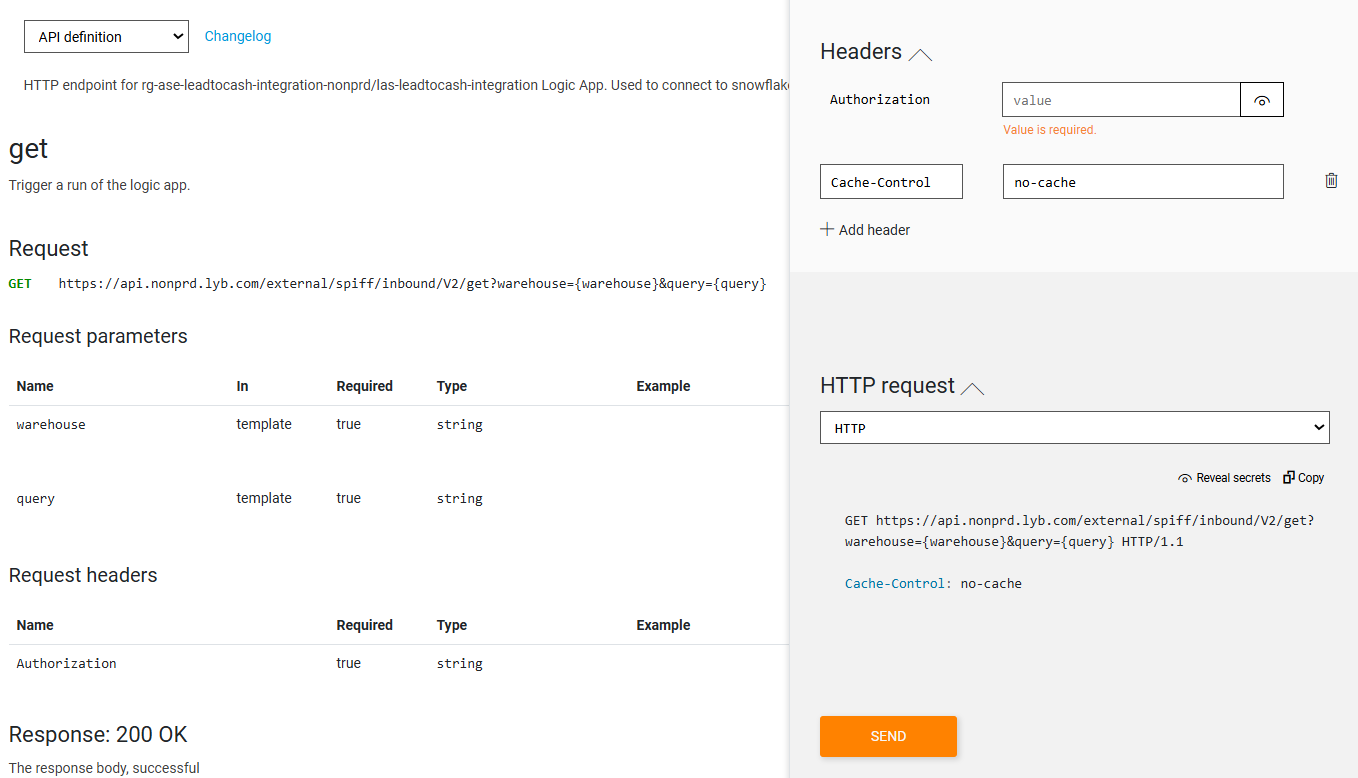
To test the API, click the "Try It" button located on the right side of the API details page. This action opens the interactive testing tab, where users can input the necessary parameters to execute a live request. In this interface, populate the required fields using the information previously gathered—specifically, the warehouse query and the authentication bearer token. Once all required inputs are provided, the API can be tested directly from the portal. Press the "SEND" button to validate the request and observe the response in real time.
For this example:
warehouse is "DEV_ETL_WH_01"
query is "select TOP 10 * from STG_SOURCE.EDMSALES."vbApsProfitSpiff""